Lesson 3
Agenda:
Step 6: Publish Your Weebly Website
Once you are finished with all your initial editing, it is time to publish your Weebly website. Remember, you can make changes to it at any time simply by going into the Weebly website builder, so it is not like you have to have it absolutely perfect before you go live.
To publish your Weebly website, simply click on the orange “PUBLISH” button at the top right hand of your editor. As long as you are using the free version, it will show you the domain option window again like it did early on in the process. If you do not want to upgrade, just select the “Use a sub-domain of Weebly.com” option and hit continue.
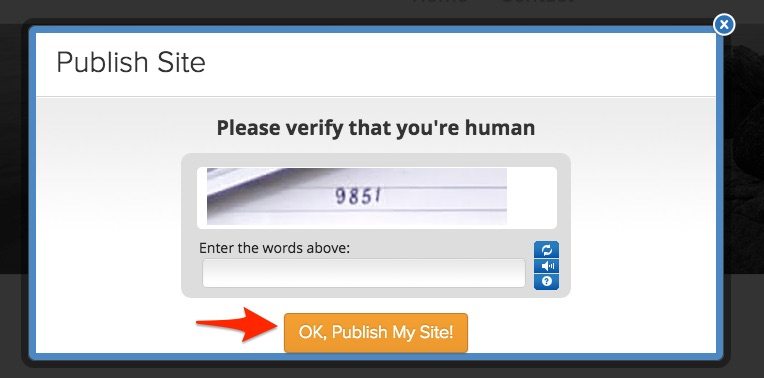
The last thing you will have to do, is put in a code to verify you are a human, and then hit the orange “Ok, Publish my Site!” button.
Step 7: Decide What Kind of Plan You Want To Have Moving Forward
The free plan may be more than enough for your small business. But, if you want more functionality or an online store, you will have to pay for a premium plan.
Here is a breakdown of Weebly’s plans and what features are included with each. Of course, the Weebly website builder is included with every plan.
Free– Unlimited pages, hosting, Weebly Subdomain, Weebly ads, 500MB storage limit, blog, email and chat support
Starter = $9/month– Free Plan + free domain (1 year), no Weebly ads, unlimited storage limit, sell up to 10 products (3% transaction fee)
Pro = $14/month– Starter plan + phone support, HD Audio and Video Players, in-depth site reporting, sell up to 25 ecommerce products (3% transaction fee), site search, have up to 100 members
Business = $34/month – Pro Plan + unlimited membership, SSL security, unlimited ecommerce products, 0% transaction fee on all sales, integrated shopping cart on your domain, digital goods, inventory management, shipping and tax calculator, coupon codes
Publish your Website with One-Click
Once you are done with all of your pages, the next step is to make your website public. For this, you will have to click on the “Publish” button at the top right side of your screen.

You will be asked to choose a subdomain, register a new one, or use your own domain. While we are only testing Weebly, we won’t register a domain just yet, so we will choose a subdomain to publish our website. Click on “Continue” button to proceed.

It will take just couple of seconds for the system to save and publish your website. Once it is done, you can access it on the provided URL.

Congratulation, you just created your own website for free, without even writing a single line of code!