Lesson 1
Agenda:
What is Python, exactly?
Ok, so python is this thing called a programming language. It takes text that you’ve written (usually referred to as code), turns it into instructions for your computer, and runs those instructions. We’ll be learning how to write code to do cool and useful stuff. No longer will you be bound to use others’ programs to do things with your computer - you can make your own!
Practically, Python is just another program on your computer. The first thing to learn is how to use and interact with it. There are in fact many ways to do this; the first one to learn is to interact with python’s interpreter, using your operating system’s (OS) console.
A console (or ‘terminal’, or ‘command prompt’) is a textual way to interact with your OS, just as the ‘desktop’, in conjunction with your mouse, is the graphical way to interact your system.
Opening a console on Mac OS X
OS X’s standard console is a program called Terminal. Open Terminal by navigating to Applications, then Utilities, then double-click the Terminal program. You can also easily search for it in the system search tool in the top right.
The command line Terminal is a tool for interacting with your computer. A window will open with a command line prompt message, something like this:
mycomputer:~ myusername$
Opening a console on Linux
Different linux distributions (e.g Ubuntu, Fedora, Mint) may have different console programs, usually referred to as a terminal. The exact terminal you start up, and how, can depend on your distribution. On Ubuntu, you will likely want to open Gnome Terminal. It should present a prompt like this:
myusername@mycomputer:~$
Opening a console on Windows
Window’s console is called the Command Prompt, named cmd. An easy way to get to it is by using the key combination Windows+R (Windows meaning the windows logo button), which should open a Run dialog. Then type cmd and hit Enter or click Ok. You can also search for it from the start menu. It should look like:
C:\Users\myusername
>
Window’s Command Prompt is not quite as powerful as its counterparts on Linux and OS X, so you might like to start the Python Interpreter (see just below) directly, or using the IDLE program that Python comes with. You can find these in the Start menu.
Using Python
The python program that you have installed will by default act as something called an interpreter. An interpreter takes text commands and runs them as you enter them - very handy for trying things out.
Just type python at your console, hit Enter, and you should enter Python’s Interpreter.
To find out which version of python you’re running, instead type python-V in your console to tell you.
Interacting With Python
After Python opens, it will show you some contextual information similar to this:
Python 3.5.0 (default, Sep 20 2015, 11:28:25)
[GCC 5.2.0] on linux
Type "help", "copyright", "credits" or "license" for more information.

>
>
>
Note
The prompt >>> on the last line indicates that you are now in an interactive Python interpeter session, also called the “Python shell”. This is different from the normal terminal command prompt!
You can now enter some code for python to run. Try:
print
(
"Hello world"
)
Press Enter and see what happens. After showing the results, Python will bring you back to the interactive prompt, where you could enter another command:
>
>
>
print
(
"Hello world"
)
Hello world
>
>
>
(
1
+
4
)
*
2
10
An extremely useful command is help(), which enters a help functionality to explore all the stuff python lets you do, right from the interpreter. Press q to close the help window and return to the Python prompt.
To leave the interactive shell and go back to the console (the system shell), press Ctrl-Z and then Enter on Windows, or Ctrl-D on OS X or Linux. Alternatively, you could also run the python command exit()!
Exercise
Just above we demonstrated entering a command to figure out some math. Try some math commands of your own! What operations does python know? Get it to tell you what 239 and 588 added together, and then squared is.
Solution
Running Python files
When you have a lot of python code to run, you will want to save it into a file, so for instance, you can modify small parts of it (fix a bug) and re-run the code without having to repeatedly re-type the rest. Instead of typing commands in one-by-one you can save your code to a file and pass the file name to the python program. It will execute that file’s code instead of launching its interactive interpreter.
Let’s try that! Create a file hello.py in your current directory with your favorite code editor and write the print command from above. Now save that file. On Linux or OS X, you can also run touchhello.py to create an empty file to edit. To run this file with python, it’s pretty easy:
$
python hello.py
Note
Make sure you are at your system command prompt, which will have $ or > at the end, not at python’s (which has >>> instead)!
On Windows you should also be able to double-click the Python file to run it.
When pressing Enter now, the file is executed and you see the output as before. But this time, after Python finished executing all commands from that file it exits back to the system command prompt, instead of going back to the interactive shell.
And now we are all set and can get started with turtle!
Note
Not getting “Hello world” but some crazy error about “can’t open file” or “No such file or directory?” Your command line might not be running in the directory that you saved the file in. You can change the working directory of your current command line with the cd command, which stands for “change directory”. On Windows, you might want something like:
>
 cd Desktop\Python_Exercises
On Linux or OS X, you might want something like:
$
cd
Desktop/Python_Exercises
This changes to the directory Python_Exercises under the Desktop folder (yours might be somewhere different). If you don’t know the location of the directory where you saved the file, you can simply drag the directory to the command line window. If you don’t know which directory your shell is currently running in use pwd, which stands for “print working directory”.
Simple drawing with turtle
Introduction
“Turtle” is a python feature like a drawing board, which lets you command a turtle to draw all over it!
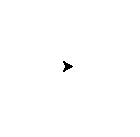
You can use functions like turtle.forward(...) and turtle.left(...) which can move the turtle around.
Before you can use turtle, you have to import it. We recommend playing around with it in the interactive interpreter first, as there is an extra bit of work required to make it work from files. Just go to your terminal and type:
import
turtle
Note
Not seeing anything on Mac OS? Try issuing a command like turtle.forward(0) and looking if a new window opened behind your command line.
Note
Do you work with Ubuntu and get the error message “No module named _tkinter”? Install the missing package with sudoapt-getinstallpython3-tk
Note
While it might be tempting to just copy and paste what’s written on this page into your terminal, we encourage you to type out each command. Typing gets the syntax under your fingers (building that muscle memory!) and can even help avoid strange syntax errors.
turtle
.
forward
(
25
)
turtle
.
left
(
30
)
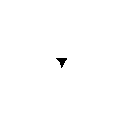
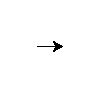
The turtle.forward(...) function tells the turtle to move forward by the given distance. turtle.left(...) takes a number of degrees which you want to rotate to the left. There is also turtle.backward(...) and turtle.right(...), too.
Note
Want to start fresh? You can type turtle.reset() to clear the drawing that your turtle has made so far. We’ll go into more detail on turtle.reset() in just a bit.
The standard turtle is just a triangle. That’s no fun! Let’s make it a turtle instead with the turtle.shape() command:
turtle
.
shape
(
"turtle"
)
So much cuter!
If you put the commands into a file, you might have recognized that the turtle window vanishes after the turtle finished its movement. (That is because Python exits when your turtle has finished moving. Since the turtle window belongs to Python, it goes away as well.) To prevent that, just put turtle.exitonclick() at the bottom of your file. Now the window stays open until you click on it:
import
turtle
turtle
.
shape
(
"turtle"
)
turtle
.
forward
(
25
)
turtle
.
exitonclick
()
Note
Python is a programming language where horizontal indenting of text is important. We’ll learn all about this in the Functions chapter later on, but for now just keep in mind that stray spaces or tabs before any line of Python code can cause an unexpected error. You could even try adding one to check how python will complain!
Drawing a square
Note
You’re not always expected to know the anwer immediately. Learn by trial and error! Experiment, see what python does when you tell it different things, what gives beautiful (although sometimes unexpected) results and what gives errors. If you want to keep playing with something you learned that creates interesting results, that’s OK too. Don’t hesitate to try and fail and learn from it!
Exercise
Draw a square as in the following picture:
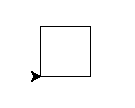
For a square you will probably need a right angle, which is 90 degrees.