Weebly
You can build a professional looking 4-5 page Weebly website in under an hour. It is cheap (sometimes even free), easy-to-use, has plenty of features, has good customer service, and has a solid online store option.
Many small business owners avoid getting a website because they think that it has to be super sophisticated, time consuming, and expensive. But in reality, all most small business owners need is a simple 4-5 page website that provides contact info, tells customers who you are, explains your product or service offering, and has some reviews or testimonials.
A Weebly website is perfect for that, with its easy-to-use website building tool that you can master in minutes.
Click here to follow along with your own free Weebly website.
Table of contents:
- Step 1: Sign Up
- Step 2: Pick a Theme
- Step 3: Pick a Domain Option
- Step 4: Build Your Website
- Step 5: Explore Additional Elements and Options
- Step 6: Publish Your Site
- Step 7: Decide What Kind of Plan You Want To Have Moving Forward
Step 1: Sign Up for Your Weebly Website
The first step, is to go toWeebly.com. Once there, you need to click on one of the “Try it free” buttons on the page.
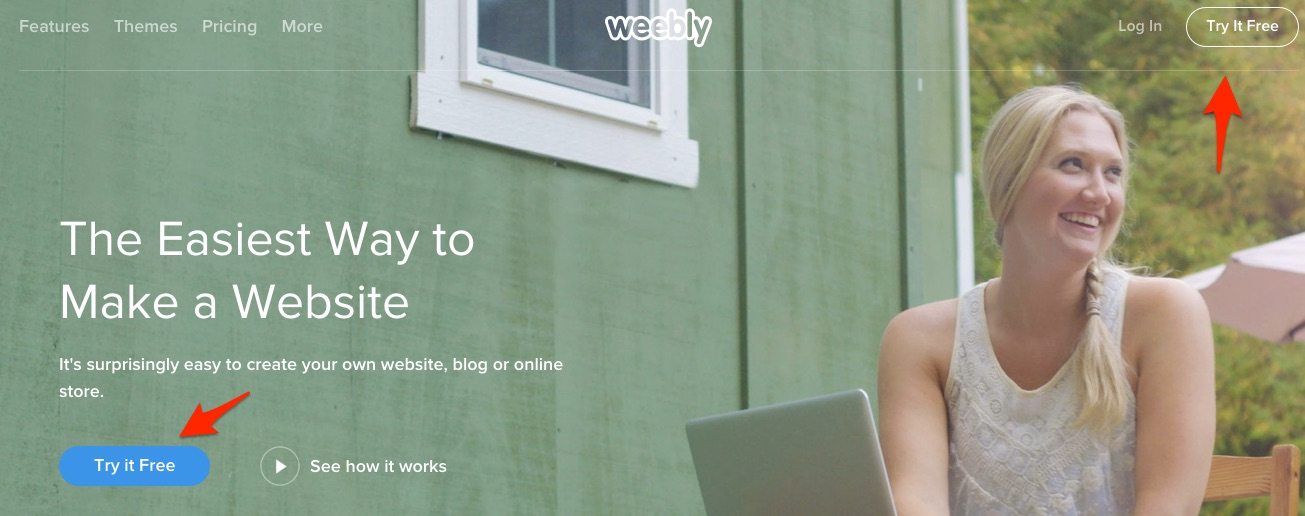
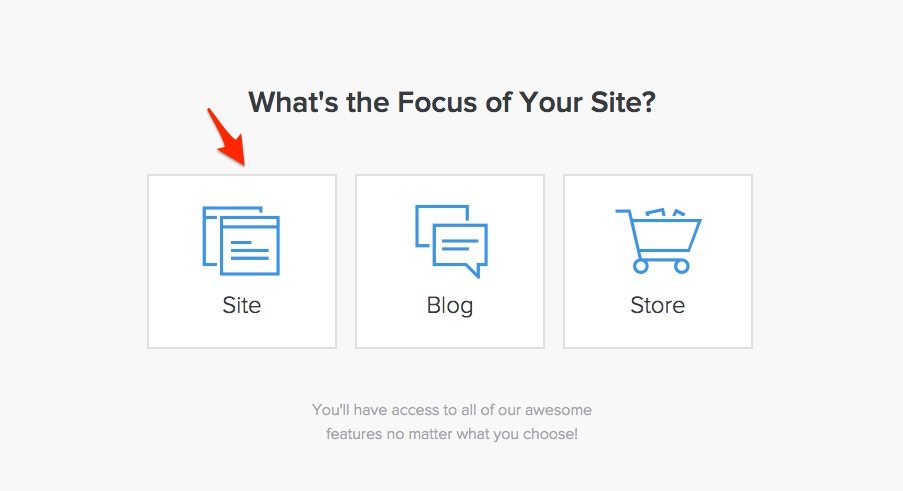
Next, you will be routed to a sign-up screen. Put in your full name, email, and a password to get started. After you click the “Sign up Free” button, you will be taken to a page that asks you whether you want a site, blog, or store.
If you are going to be using your Weebly website solely for blogging or selling product, you can pick one of those two options. But in most cases, you should click on the “Site” button. It doesn’t limit you, as you can still setup a blog or online store. The categories are just a guide Weebly uses to help decide which themes they will present to you in the next step.
Step 2: Pick a Theme
The next decision, is figuring out what kind of theme you want to use. Certain themes will probably make more sense for your business than others.
Several important things to keep in mind when picking a theme:
- You can change themes at any time The Weebly website builder, unlike competitor Wix, allows you to change themes at any time. When you change a theme, all of your info you have created is automatically imported into the new theme, so you don’t lose anything. So, it really is not that big of a deal which theme you start out with.
- Weebly has industry-specific themes – Although any theme can be tailored to fit any industry. Most are pre-designed for a certain kind of business. If you want as little work as possible, pick a theme that is already set up for your industry. Then, really all you have to do is just change the pictures, page titles, and text.
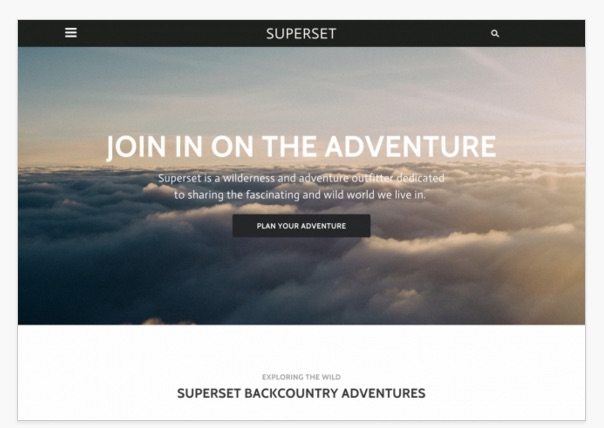
- Always Ask, “What am I trying to accomplish?” – Some sites are better at accomplishing certain goals than others. For example, if your main goal is to get leads using an action button, then a theme like this would be ideal. Instead of having a variety of places to click, it just provides one option, “Plan Your Adventure,” and makes that the central focus.
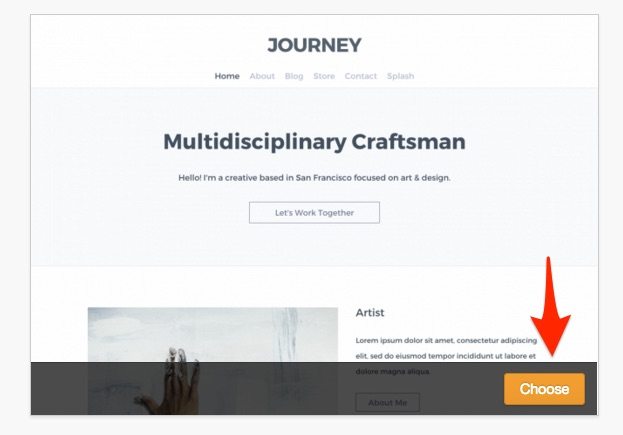
If you are looking for more of an informational site, then you probably want a themelike this. It has clear tabs at the top where your visitors can navigate to various parts of your Weebly website to learn more about your business. It also has a several links to other pages on the site as you scroll down the homepage, which will help visitors to click around and see what you are about.

When you have decided on a theme, just go down to the bottom right hand corner and click on the “choose” button.
Step 3: Pick a Domain Option
The next thing you’ll see, is the domain option page. It looks like this:
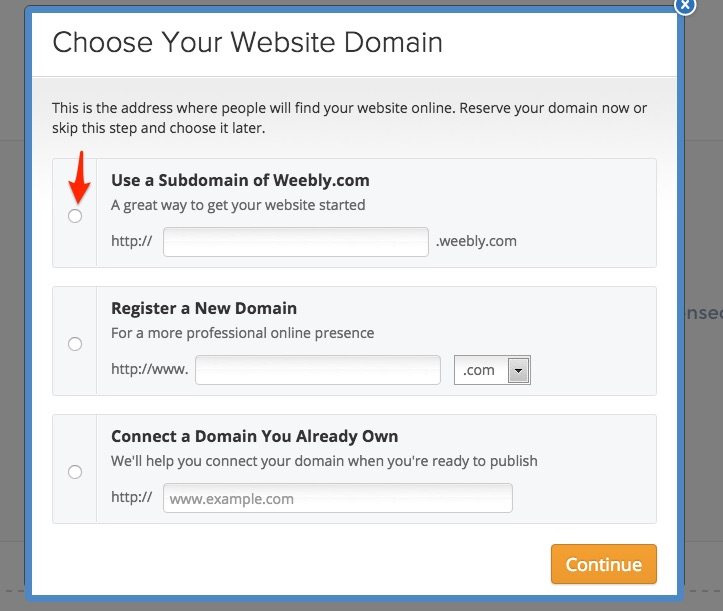
If you are wanting a free Weebly website, your only option is to choose the subdomain of Weebly.com. Your domain won’t be as unique, but you won’t have to pay anything.
If you are wanting your own unique domain, you have several options.
You can:
- Get one through Weebly – It is free for the first year with a paid plan and then around $20/year after.
- Connect one you already own – If you already have a unique domain, you can connect it to your Weebly website. It is a little complicated, but many domain providers can do this for you if you ask. If you want to do it yourself, here is a guide .
- Buy one through a third-party provider and connect it – We do all of our hosting through GoDaddy. Check out our “ Choosing a domain name ” article for more info.
Keep in mind, if you end up using your own custom domain, you will have to purchase a Weebly website premium plan. Step 7 has a breakdown of the plan options and features they include. All paid plans allow you to get a unique domain.
Step 4: Build Your Weebly Website
Once you have picked your domain name, you will be taken to the Weebly website builder screen, which is where you will actually do all the major constructing of your website. Here’s what it looks like (minus the red numbers and arrows of course).
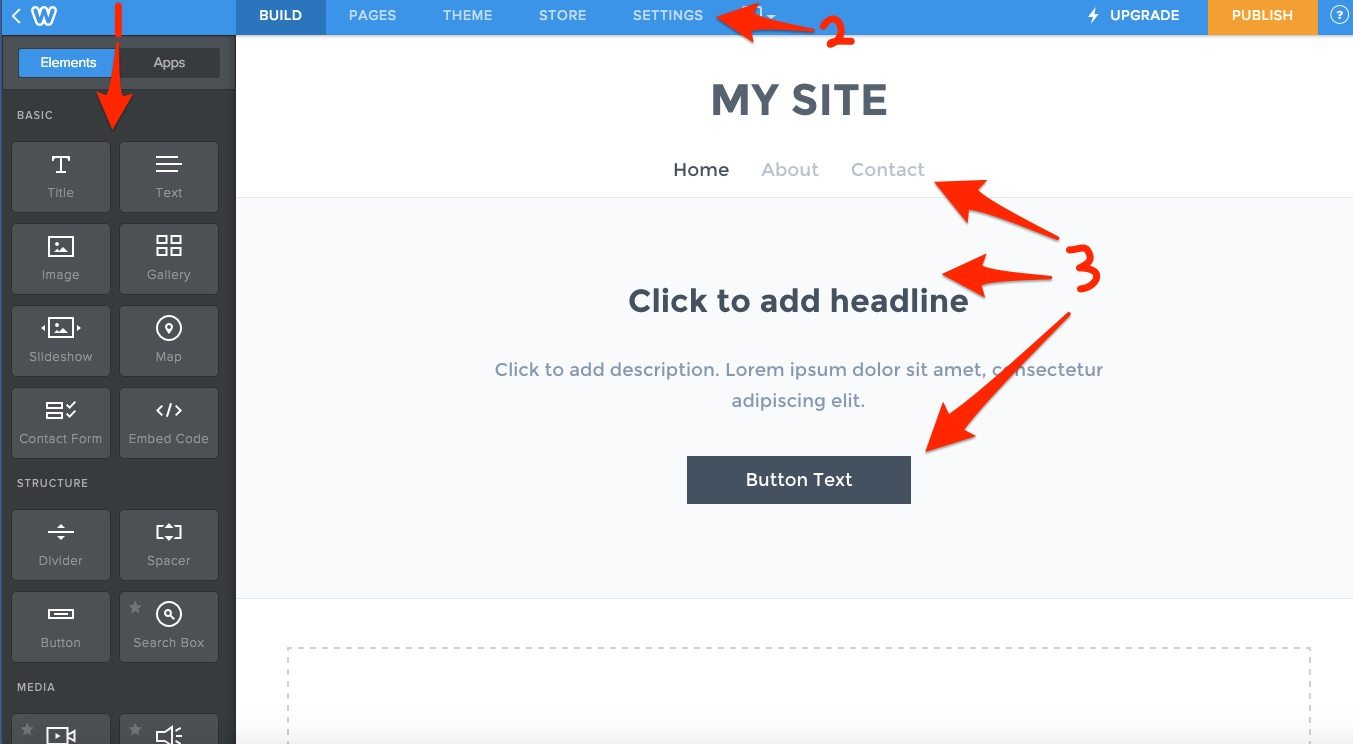
Here’s a breakdown of the Weebly website builder:
- Element Bar – The element bar is on the far left-hand side of the builder, as shown by the red “1” and downward arrow. “Elements” are just all the components you will use to build your site. To add an element to a page, simply click on an element (and hold) and then drag-and-drop it where you want it on the page to the right.
- Site Tabs – Like most builders, the Weebly website builder has a navigation tab along the top of the page. The tabs are, “Build,” “Pages,” “Theme,” “Store,” and “Settings.” To change the larger components of your site, simply click on the corresponding navigation tab to edit settings.
- Site Preview – The red “3” and corresponding arrows are just pointing out the actual elements on your site. This middle area of the builder is basically an editable preview of what your site will actually look like.
Adding and Editing Pages
When you first start, you will probably only have several active pages. In this theme, you start out with a “Home,” “About,” and “Contact” page, as shown below.
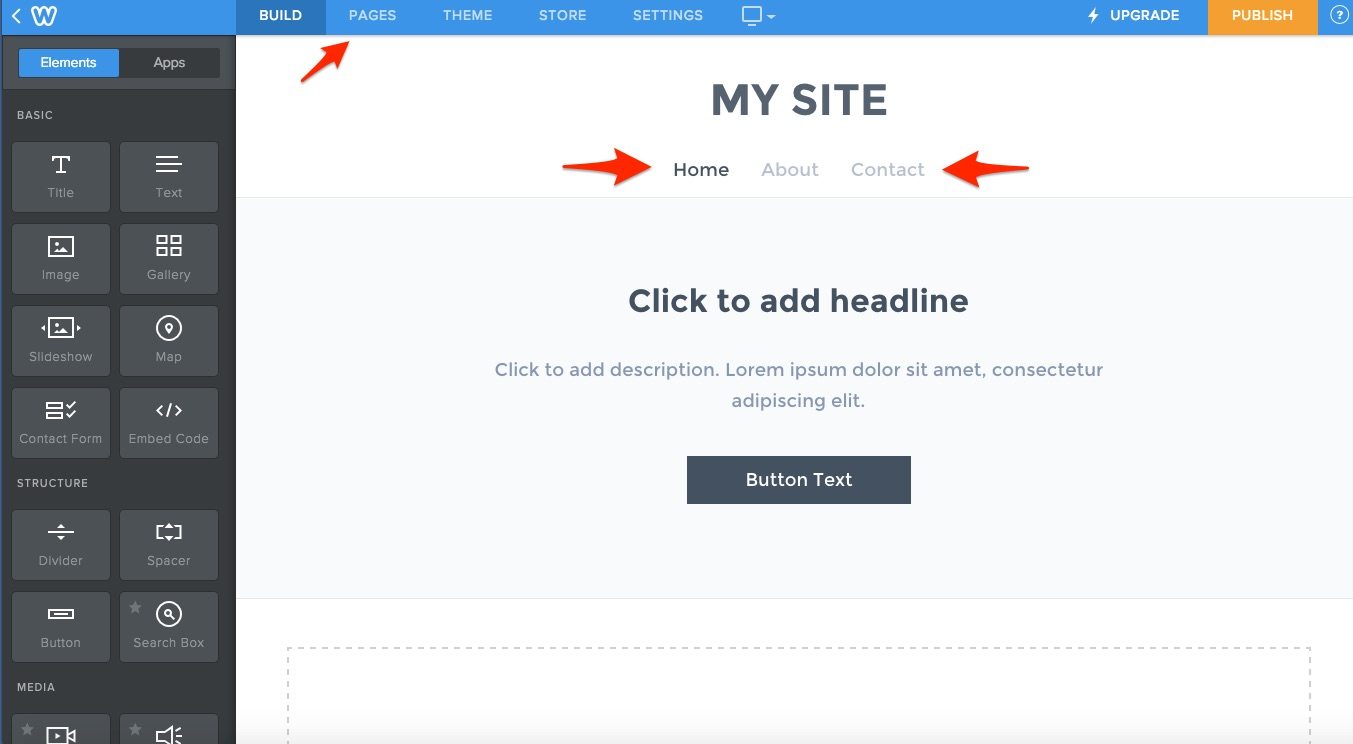
To add, delete, or edit your page settings, just click on the “Pages” tab at the top of your Weebly website builder screen, as shown by the small red arrow. You will then be taken to the pages screen.
To add a page, simply click on the white + sign near the top left of the page (as shown by the topmost red arrow). If you want to edit or delete an existing page, click on the small folder icon next to the page title, as shown by the lower arrow.
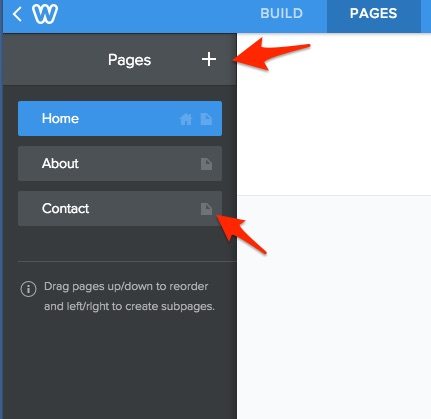
You can change page order simply by dragging each page title above or below the other titles. There are several important things to note here:
- Your top page is your default homepage – If you look closely, you will see a little house icon next to the “Home” page folder icon above. That designates which of your pages is the “Homepage,” the first page visitors will see on your Weebly website (at least in most cases). Just remember, whichever page you have on top will automatically be assigned as your homepage.
- You can drag-and-drop a page to the right to create a subpage – If you want to create a page that does not show up in your main pages tab, then you will need to create a subpage. To do that, you simply create a page like normal, rearrange it so that the page is under whatever main page you want it to be related to, and then drag it to the right. That will create a subpage. As shown below, a subpage is indicated by an indentation in the tab. In this case, the “About” page is now a subpage of the “Home” page.
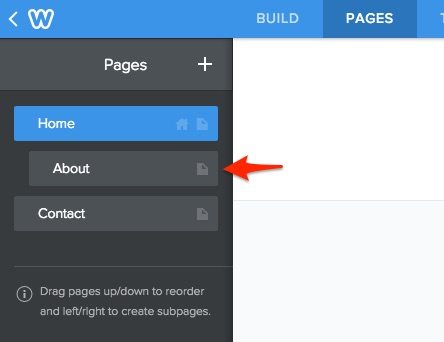
- Your main pages in your tabs are also your navigation pages that visitors will see
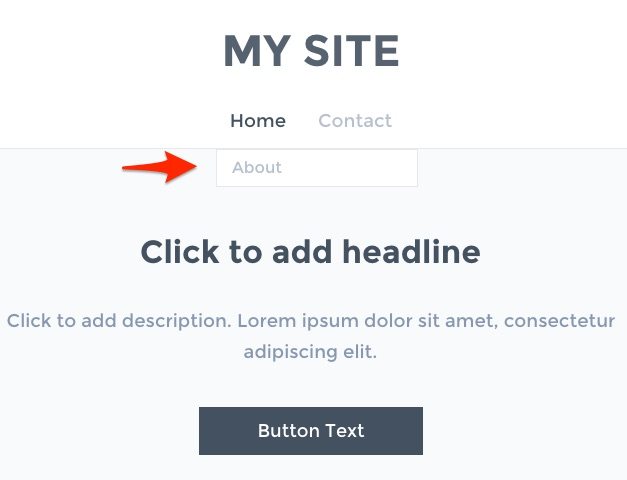
In the screenshot above, the “Home” and “Contact” pages are main pages and the “About” page is a subpage. This means that only the two main pages will appear on your nav bar. The subpages will appear whenever the related main page is hovered over by a visitors mouse. In the picture below, you only see the “Home” and Contact” pages in the main bar, but if you hover over the main page (as I did when the screenshot was taken), then the “About” page will appear in a drop-down tab.
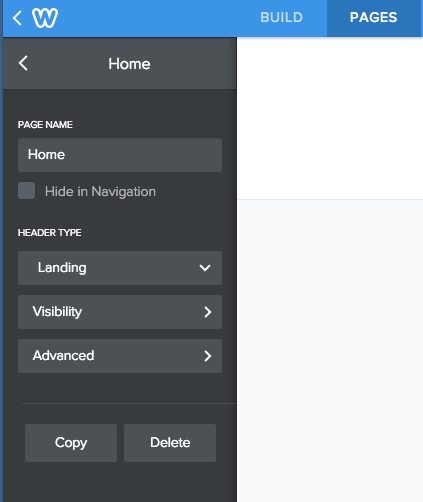
The last thing to mention here, is that you can edit the settings on each page by clicking on the little folder icon mentioned earlier. When you do, that will bring up this page, which allows you to make a variety of changes. You can decide whether to hide the page in navigation, change the style of your overall page layout (landing, splash, title, etc), and edit advanced settings as well (page description, meta keywords, etc).
Changing or Editing Text With the Weebly Website Builder
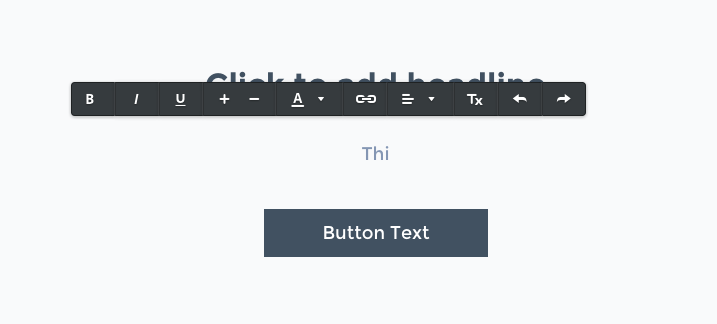
Changing or editing text in the Weebly website builder is as easy as clicking on the text box or title you want to edit. If you are just starting out and have not entered any text yet, then the area will just go blank when you click on it and a text setting bar will pop-up (as seen below). If you are changing text you have already inputted, then you will have to delete it before you add new. As you can see, I started typing the “Thi” in before I took the screenshot.
To edit the text inside a button, it is a little more complicated. You have to click on the button, and then you will see this window pop-up. You want to click on the “Button text” tab.
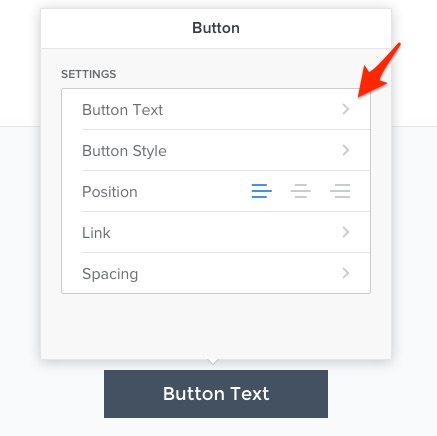
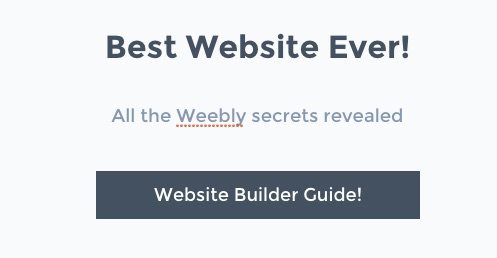
Then a window will appear where you can just type in your text. Once you have entered your text, you simply click out of the window and the button should reflect your change. Here are the changes after I edited the text.
Adding or Changing an Image
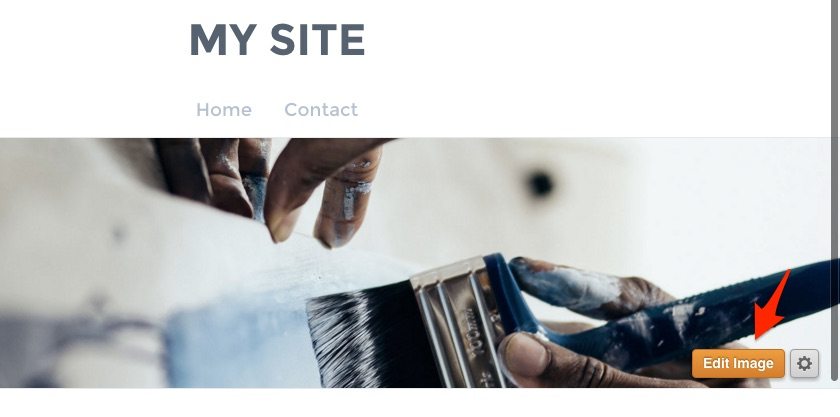
First off, let’s say you just want to take an image that is already in a theme and just change it to one specific to your business. It’s easy. Simply scroll over the image with your cursor and an orange “Edit image” button will appear. Click on that.
Once you have done that, one of two things is going to happen. If you are selecting an image that is part of a theme’s page background, as is the case here, then you will get the window below as a popup. You will want to click on the “Upload Image” button.
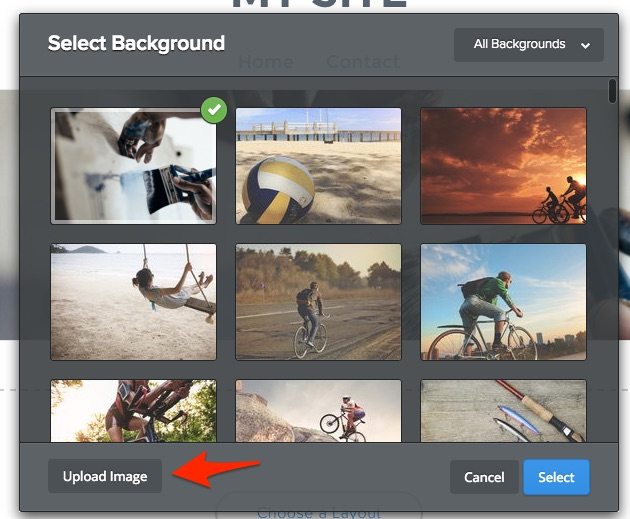
Then you will get this screen, which will either allow you to pick an image from your computer hard drive to add or you can also drag-and-drop a photo here from your desktop.
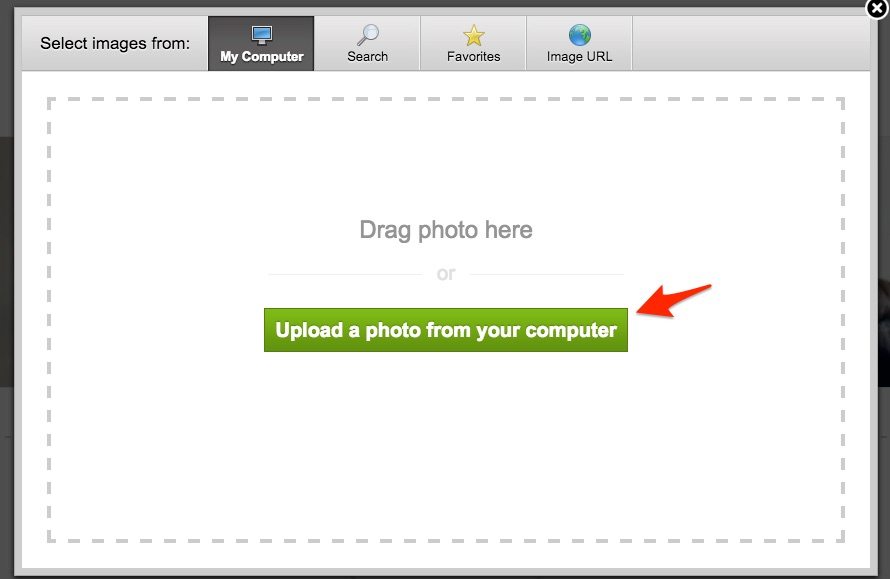
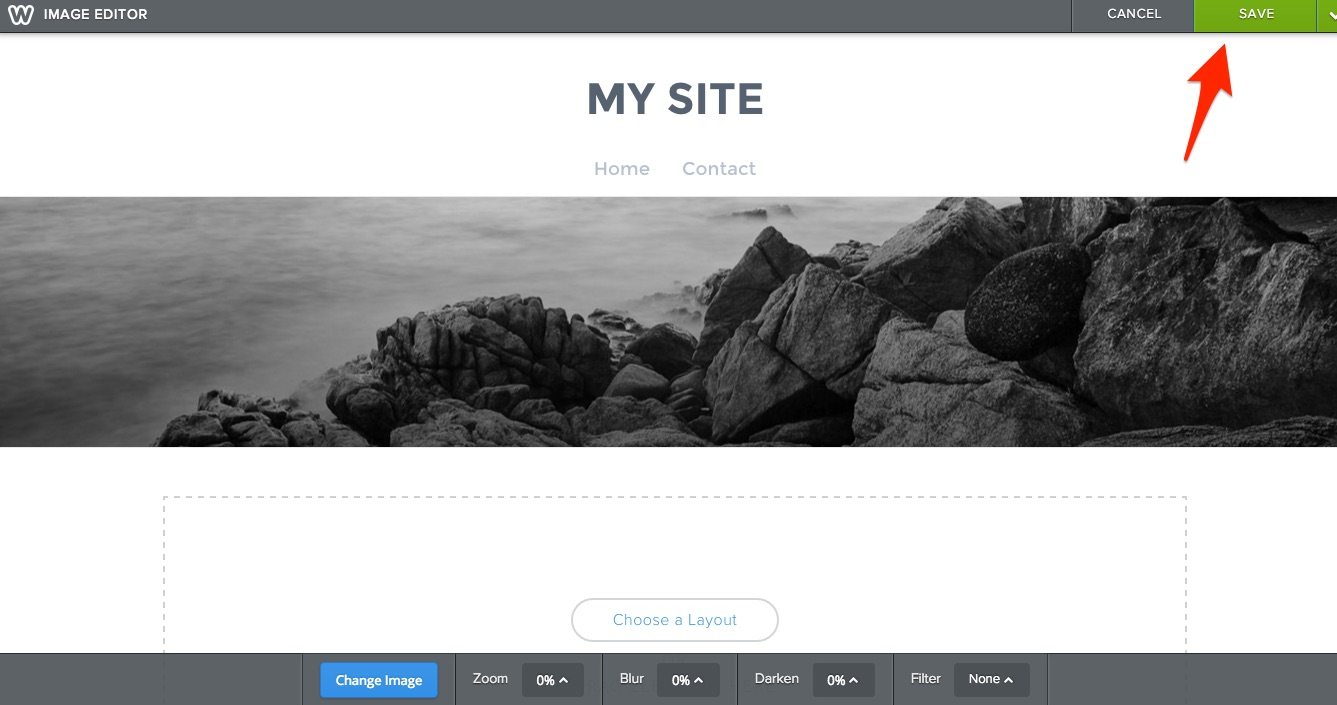
In most cases, you will just pick on the “Upload a Photo from your computer” button, find your photo on your computer, and then double click on it. Then, it will show you what the photo will look like on the page and then you’ll need to click “Save” at the top right to make it official. You will also have to pick whether or not you want it saved just to that page or to all pages on your Weebly website when it relates to a header or background.
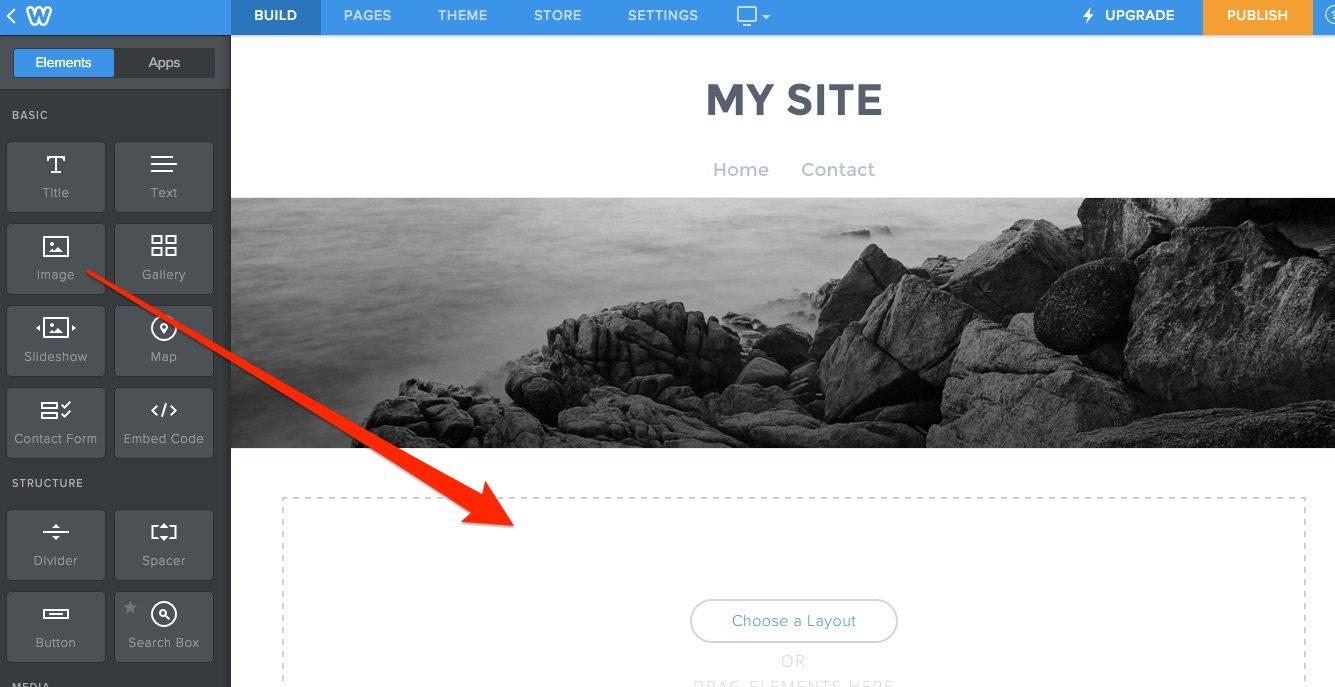
If there is no image already on a page and you just want to add one, you just drag-and-drop the “Image” element from the Weebly website builder elements tab onto the page, as shown below.
Once you have done that, you just click on the upload image box that appears.
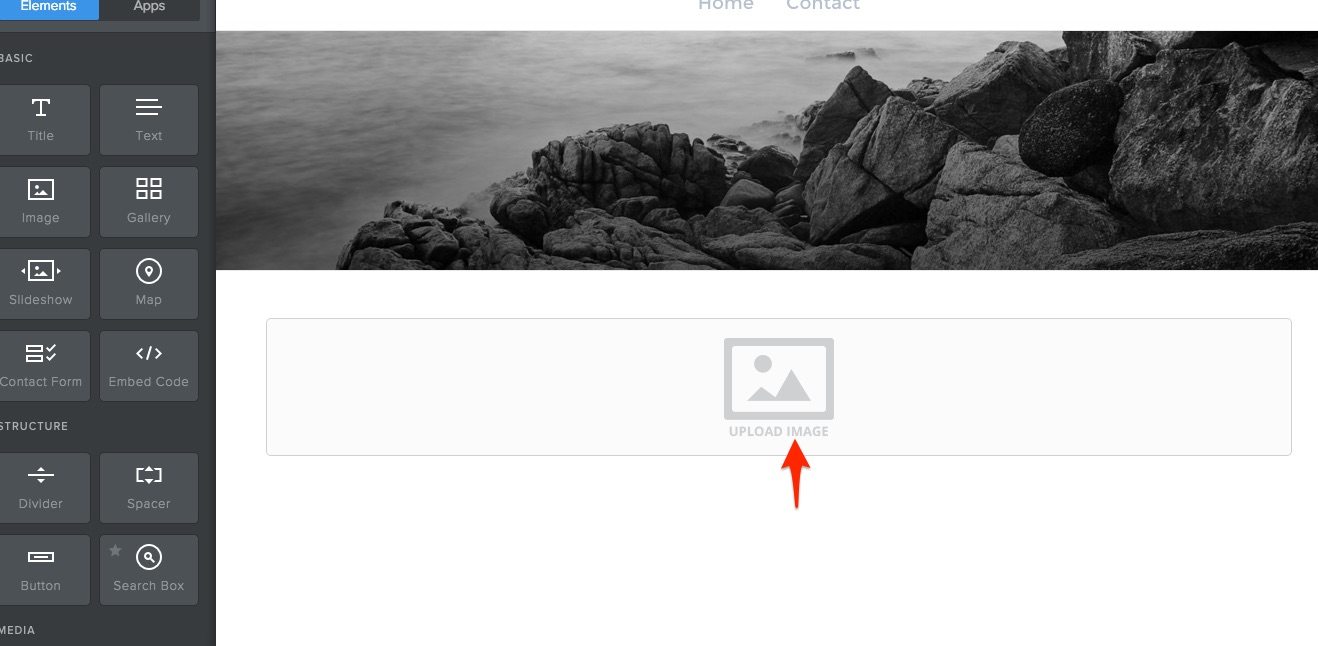
After clicking, you will get the same window shown several slides earlier, with the green button that says “Upload a photo from your computer.” In this situation, all you do is click on that button, find the file on your computer, double click, and it will be automatically updated on your Weebly website, no need to press “save” or anything.
Step 5: Explore Additional Elements and Options
The Weebly website builder gives you lots of different element options. The problem, is that going over each one individually is well beyond the scope of this article.
For example, you can:
- Change your theme at any time
- Add maps to any page
- Set up a contact form
- Add dividers or spacing
- Add a variety of media, including Videos and Audio files
- Add Social Media Icons and Links
- Add a survey
- And much more
Most of these actions are pretty self explanatory once you are familiar with the system. But, if you are having trouble figuring them out, Weebly has great tutorials for all of these actions that can be found at theirHelp Center. The tutorials are very similar to this article, detailing what you need to do and then showing a screenshot of what that looks like.
Step 6: Publish Your Weebly Website
Once you are finished with all your initial editing, it is time to publish your Weebly website. Remember, you can make changes to it at any time simply by going into the Weebly website builder, so it is not like you have to have it absolutely perfect before you go live.
To publish your Weebly website, simply click on the orange “PUBLISH” button at the top right hand of your editor. As long as you are using the free version, it will show you the domain option window again like it did early on in the process. If you do not want to upgrade, just select the “Use a sub-domain of Weebly.com” option and hit continue.
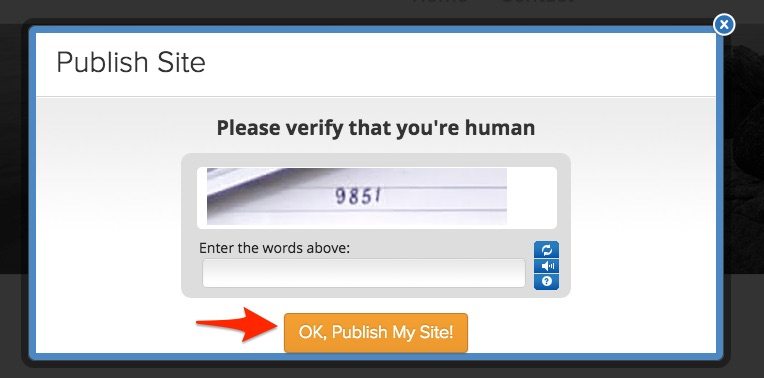
The last thing you will have to do, is put in a code to verify you are a human, and then hit the orange “Ok, Publish my Site!” button.
Step 7: Decide What Kind of Plan You Want To Have Moving Forward
The free plan may be more than enough for your small business. But, if you want more functionality or an online store, you will have to pay for a premium plan.
Here is a breakdown of Weebly’s plans and what features are included with each. Of course, the Weebly website builder is included with every plan.
Free– Unlimited pages, hosting, Weebly Subdomain, Weebly ads, 500MB storage limit, blog, email and chat support
Starter = $9/month– Free Plan + free domain (1 year), no Weebly ads, unlimited storage limit, sell up to 10 products (3% transaction fee)
Pro = $14/month– Starter plan + phone support, HD Audio and Video Players, in-depth site reporting, sell up to 25 ecommerce products (3% transaction fee), site search, have up to 100 members
Business = $34/month – Pro Plan + unlimited membership, SSL security, unlimited ecommerce products, 0% transaction fee on all sales, integrated shopping cart on your domain, digital goods, inventory management, shipping and tax calculator, coupon codes
Summary
For the average small business owner looking for a website, the Weebly website builder is a great choice. It has lots of solid features, is affordable, and is easy-to-use. With this guide, you can have a professional looking Weebly website up and running in 60 minutes or less, without spending a penny. And, if along the way you decide you want to upgrade, you can do that at any time, making Weebly a great option to scale with your business as well.