Lesson 2
Agenda:
Step 3: Pick a Domain Option
The next thing you’ll see, is the domain option page. It looks like this:
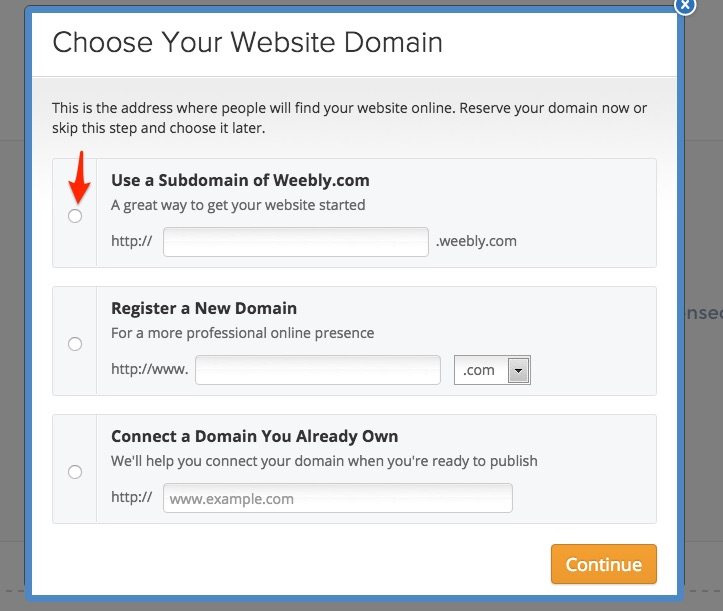
If you are wanting a free Weebly website, your only option is to choose the subdomain of Weebly.com. Your domain won’t be as unique, but you won’t have to pay anything.
If you are wanting your own unique domain, you have several options.
You can:
- Get one through Weebly – It is free for the first year with a paid plan and then around $20/year after.
- Connect one you already own – If you already have a unique domain, you can connect it to your Weebly website. It is a little complicated, but many domain providers can do this for you if you ask. If you want to do it yourself, here is a guide .
- Buy one through a third-party provider and connect it – We do all of our hosting through GoDaddy. Check out our “ Choosing a domain name ” article for more info.
Keep in mind, if you end up using your own custom domain, you will have to purchase a Weebly website premium plan. Step 7 has a breakdown of the plan options and features they include. All paid plans allow you to get a unique domain.
Step 4: Build Your Weebly Website
Once you have picked your domain name, you will be taken to the Weebly website builder screen, which is where you will actually do all the major constructing of your website. Here’s what it looks like (minus the red numbers and arrows of course).
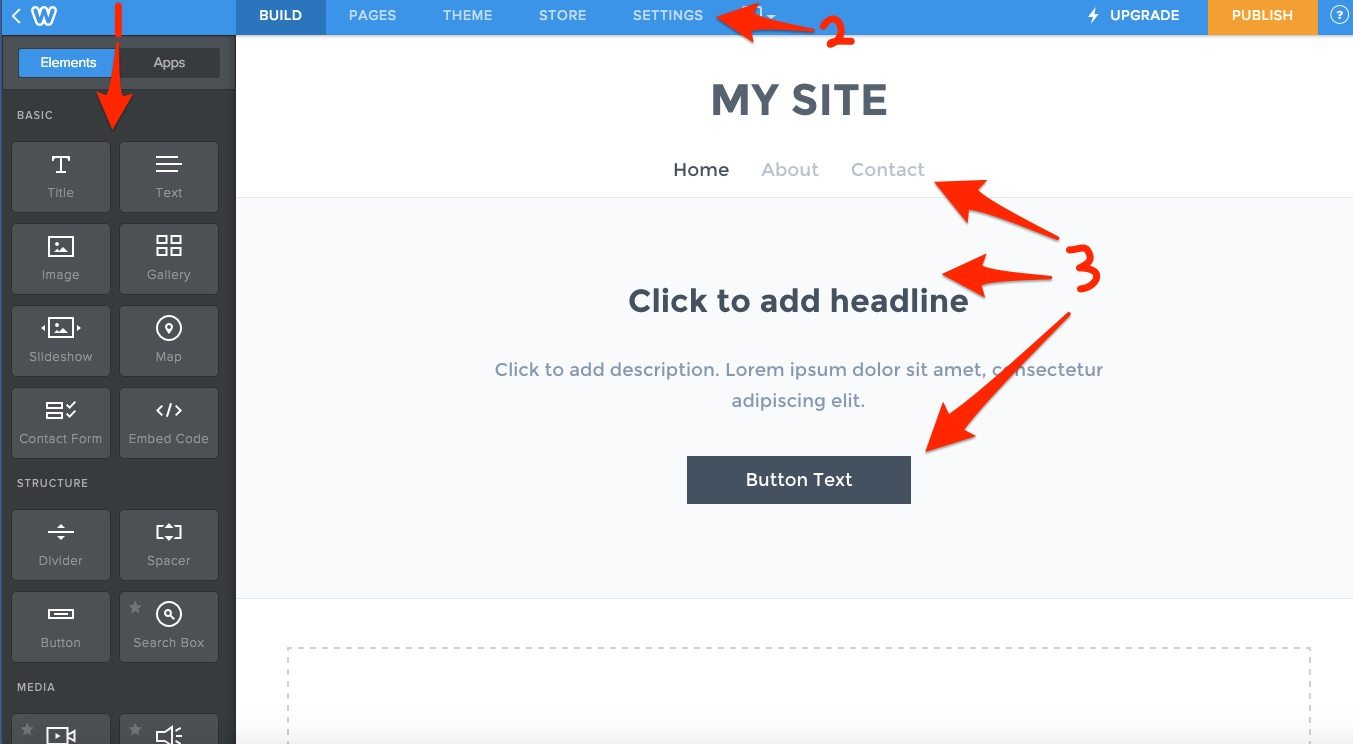
Here’s a breakdown of the Weebly website builder:
- Element Bar – The element bar is on the far left-hand side of the builder, as shown by the red “1” and downward arrow. “Elements” are just all the components you will use to build your site. To add an element to a page, simply click on an element (and hold) and then drag-and-drop it where you want it on the page to the right.
- Site Tabs – Like most builders, the Weebly website builder has a navigation tab along the top of the page. The tabs are, “Build,” “Pages,” “Theme,” “Store,” and “Settings.” To change the larger components of your site, simply click on the corresponding navigation tab to edit settings.
- Site Preview – The red “3” and corresponding arrows are just pointing out the actual elements on your site. This middle area of the builder is basically an editable preview of what your site will actually look like.
Adding and Editing Pages
When you first start, you will probably only have several active pages. In this theme, you start out with a “Home,” “About,” and “Contact” page, as shown below.
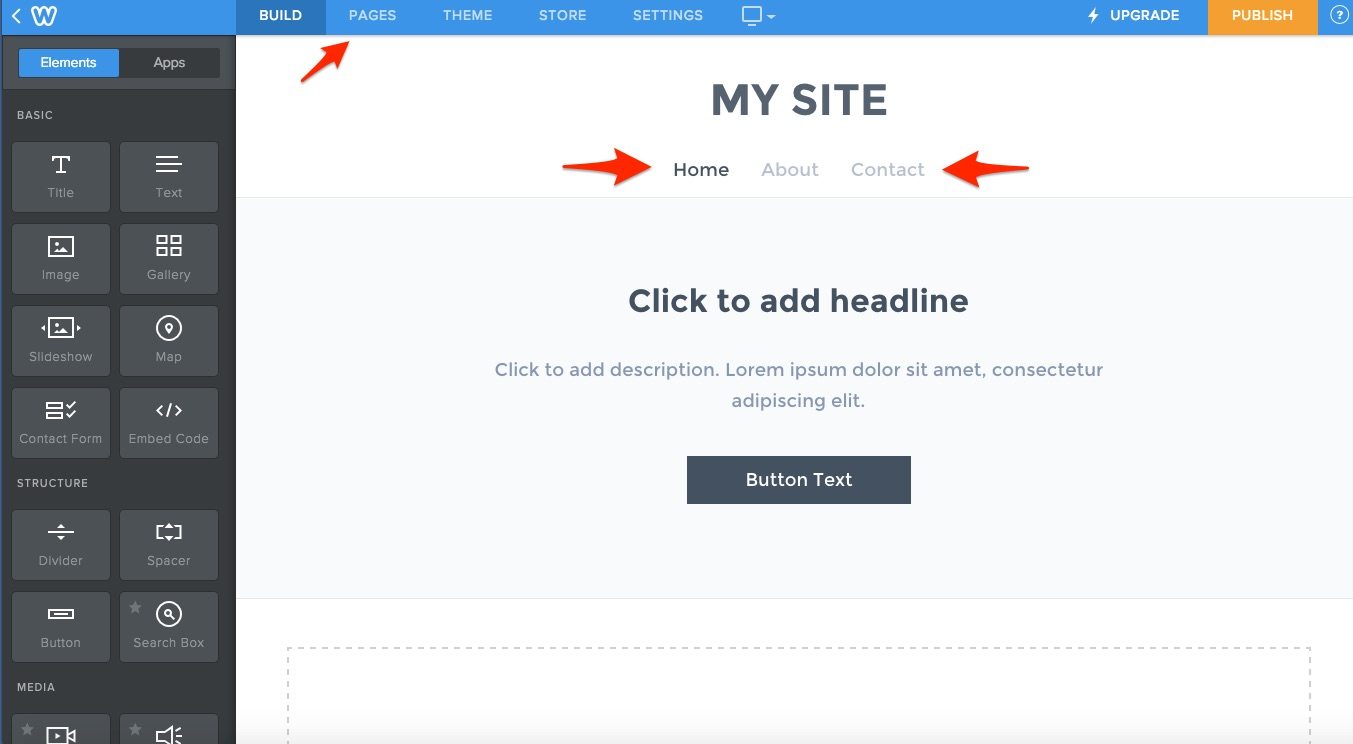
To add, delete, or edit your page settings, just click on the “Pages” tab at the top of your Weebly website builder screen, as shown by the small red arrow. You will then be taken to the pages screen.
To add a page, simply click on the white + sign near the top left of the page (as shown by the topmost red arrow). If you want to edit or delete an existing page, click on the small folder icon next to the page title, as shown by the lower arrow.
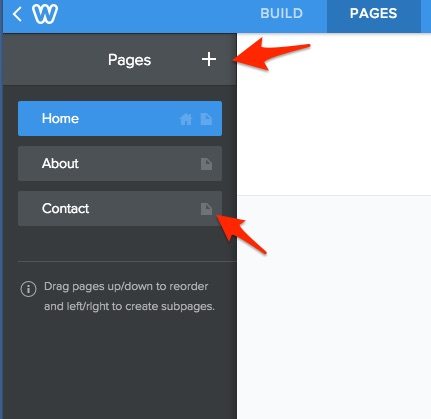
You can change page order simply by dragging each page title above or below the other titles. There are several important things to note here:
- Your top page is your default homepage – If you look closely, you will see a little house icon next to the “Home” page folder icon above. That designates which of your pages is the “Homepage,” the first page visitors will see on your Weebly website (at least in most cases). Just remember, whichever page you have on top will automatically be assigned as your homepage.
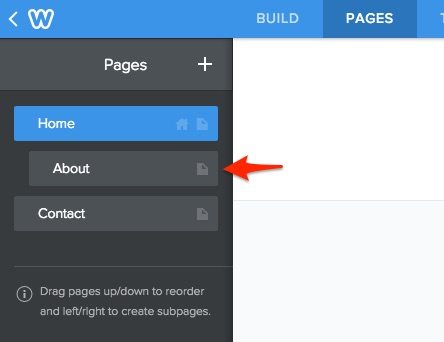
- You can drag-and-drop a page to the right to create a subpage – If you want to create a page that does not show up in your main pages tab, then you will need to create a subpage. To do that, you simply create a page like normal, rearrange it so that the page is under whatever main page you want it to be related to, and then drag it to the right. That will create a subpage. As shown below, a subpage is indicated by an indentation in the tab. In this case, the “About” page is now a subpage of the “Home” page.
- Your main pages in your tabs are also your navigation pages that visitors will see
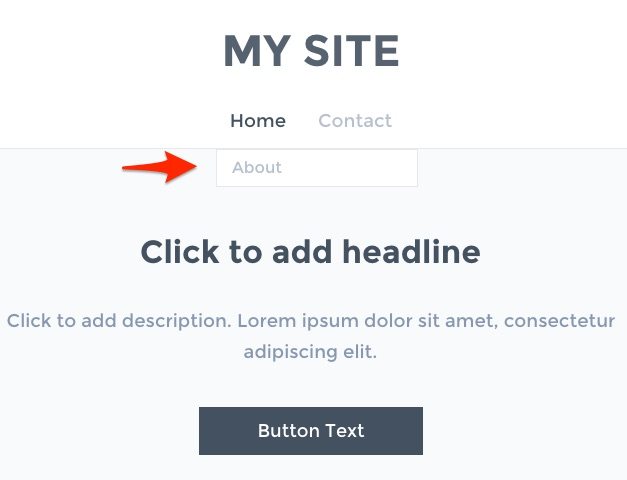
In the screenshot above, the “Home” and “Contact” pages are main pages and the “About” page is a subpage. This means that only the two main pages will appear on your nav bar. The subpages will appear whenever the related main page is hovered over by a visitors mouse. In the picture below, you only see the “Home” and Contact” pages in the main bar, but if you hover over the main page (as I did when the screenshot was taken), then the “About” page will appear in a drop-down tab.
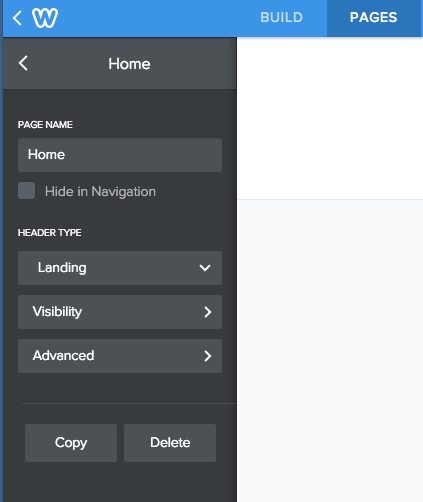
The last thing to mention here, is that you can edit the settings on each page by clicking on the little folder icon mentioned earlier. When you do, that will bring up this page, which allows you to make a variety of changes. You can decide whether to hide the page in navigation, change the style of your overall page layout (landing, splash, title, etc), and edit advanced settings as well (page description, meta keywords, etc).
Changing or Editing Text With the Weebly Website Builder
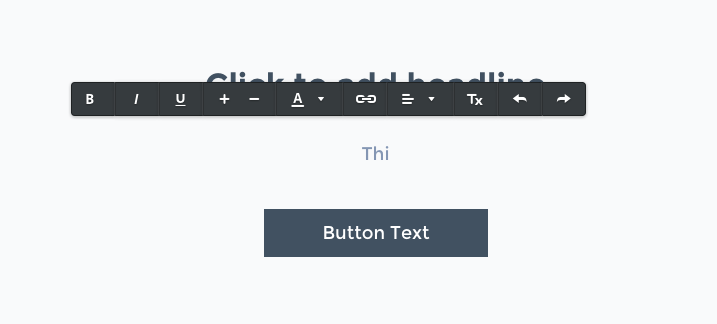
Changing or editing text in the Weebly website builder is as easy as clicking on the text box or title you want to edit. If you are just starting out and have not entered any text yet, then the area will just go blank when you click on it and a text setting bar will pop-up (as seen below). If you are changing text you have already inputted, then you will have to delete it before you add new. As you can see, I started typing the “Thi” in before I took the screenshot.
To edit the text inside a button, it is a little more complicated. You have to click on the button, and then you will see this window pop-up. You want to click on the “Button text” tab.
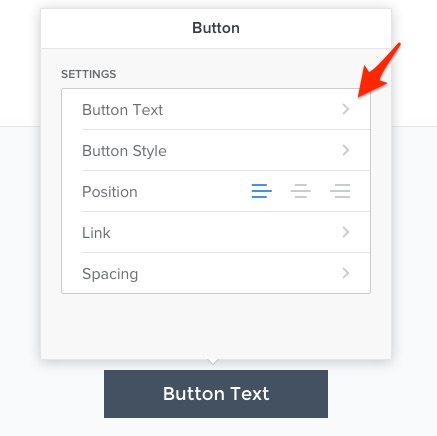
Then a window will appear where you can just type in your text. Once you have entered your text, you simply click out of the window and the button should reflect your change. Here are the changes after I edited the text.

Adding or Changing an Image
First off, let’s say you just want to take an image that is already in a theme and just change it to one specific to your business. It’s easy. Simply scroll over the image with your cursor and an orange “Edit image” button will appear. Click on that.
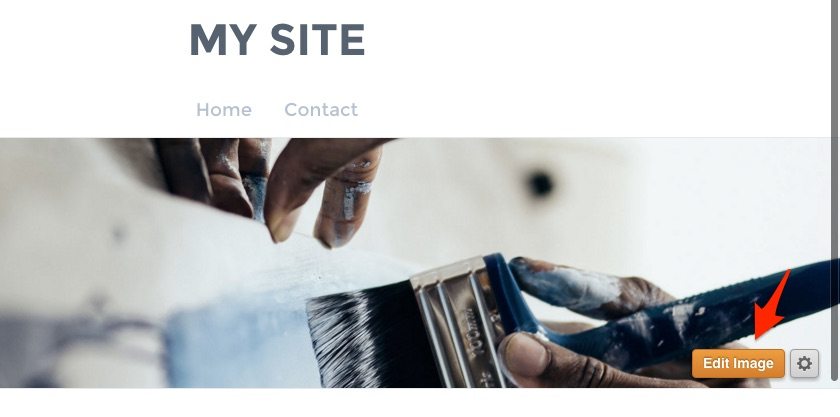
Once you have done that, one of two things is going to happen. If you are selecting an image that is part of a theme’s page background, as is the case here, then you will get the window below as a popup. You will want to click on the “Upload Image” button.
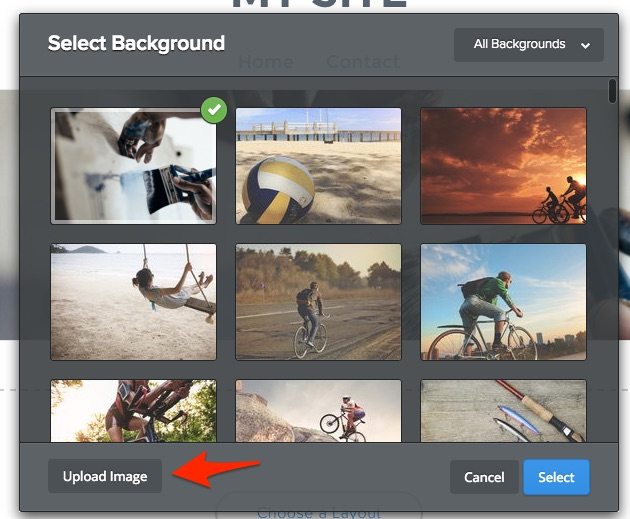
Then you will get this screen, which will either allow you to pick an image from your computer hard drive to add or you can also drag-and-drop a photo here from your desktop.
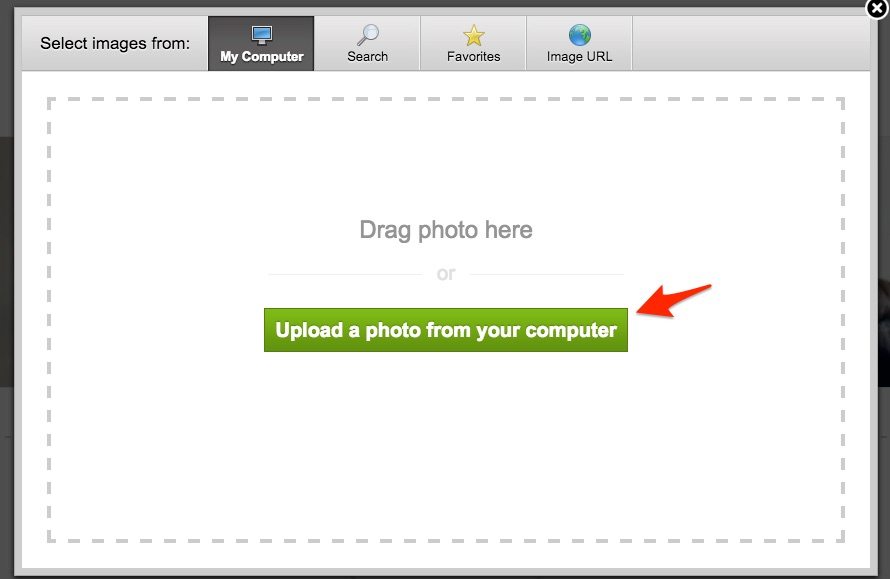
In most cases, you will just pick on the “Upload a Photo from your computer” button, find your photo on your computer, and then double click on it. Then, it will show you what the photo will look like on the page and then you’ll need to click “Save” at the top right to make it official. You will also have to pick whether or not you want it saved just to that page or to all pages on your Weebly website when it relates to a header or background.
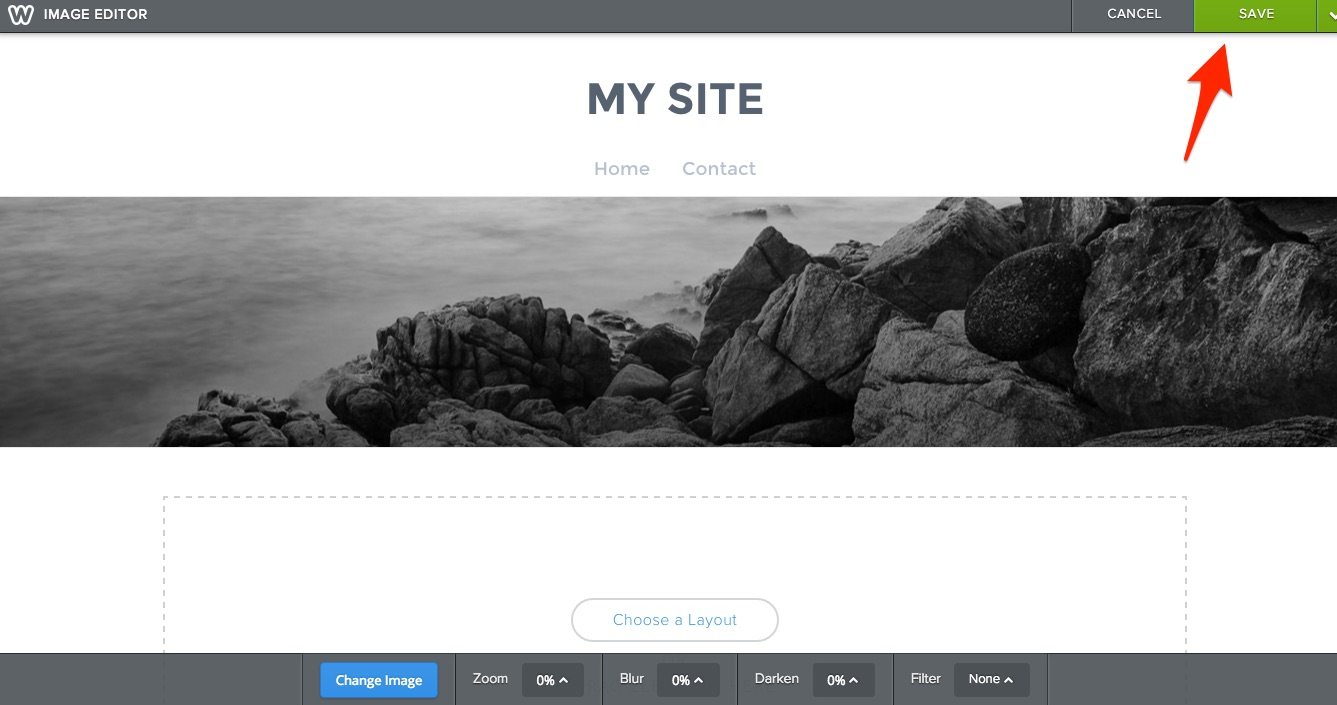
If there is no image already on a page and you just want to add one, you just drag-and-drop the “Image” element from the Weebly website builder elements tab onto the page, as shown below.
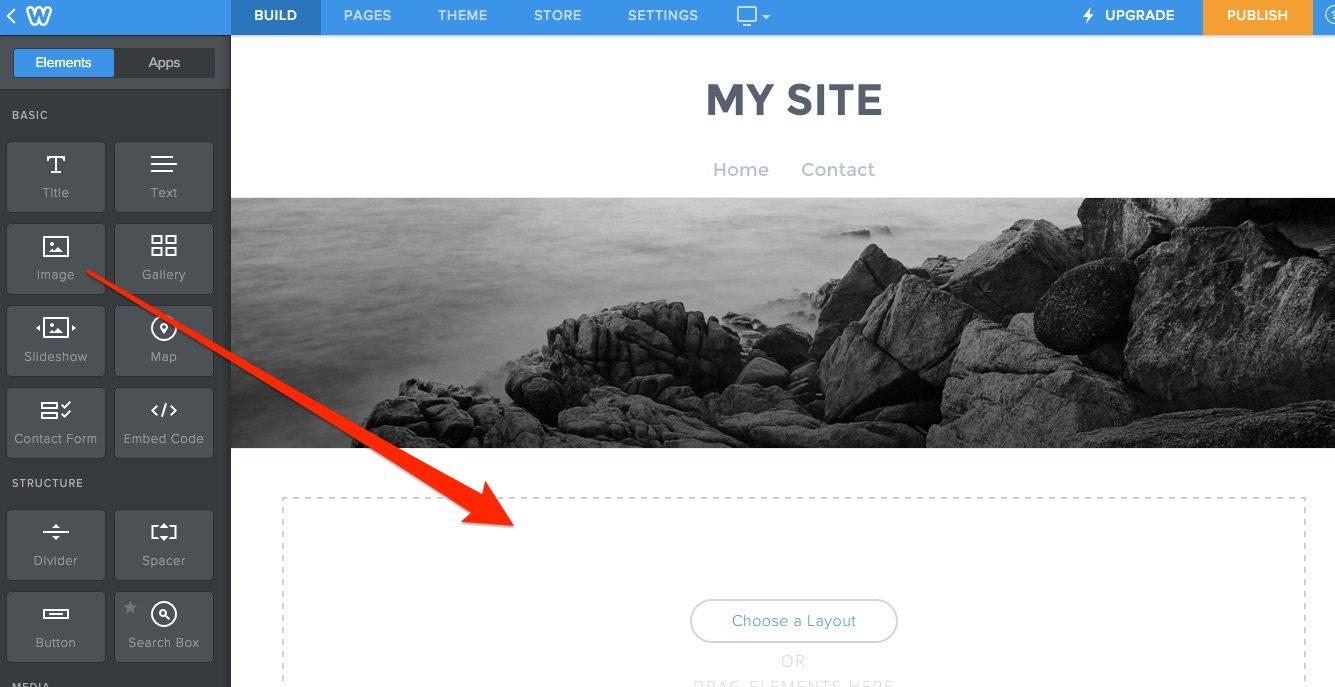
Once you have done that, you just click on the upload image box that appears.
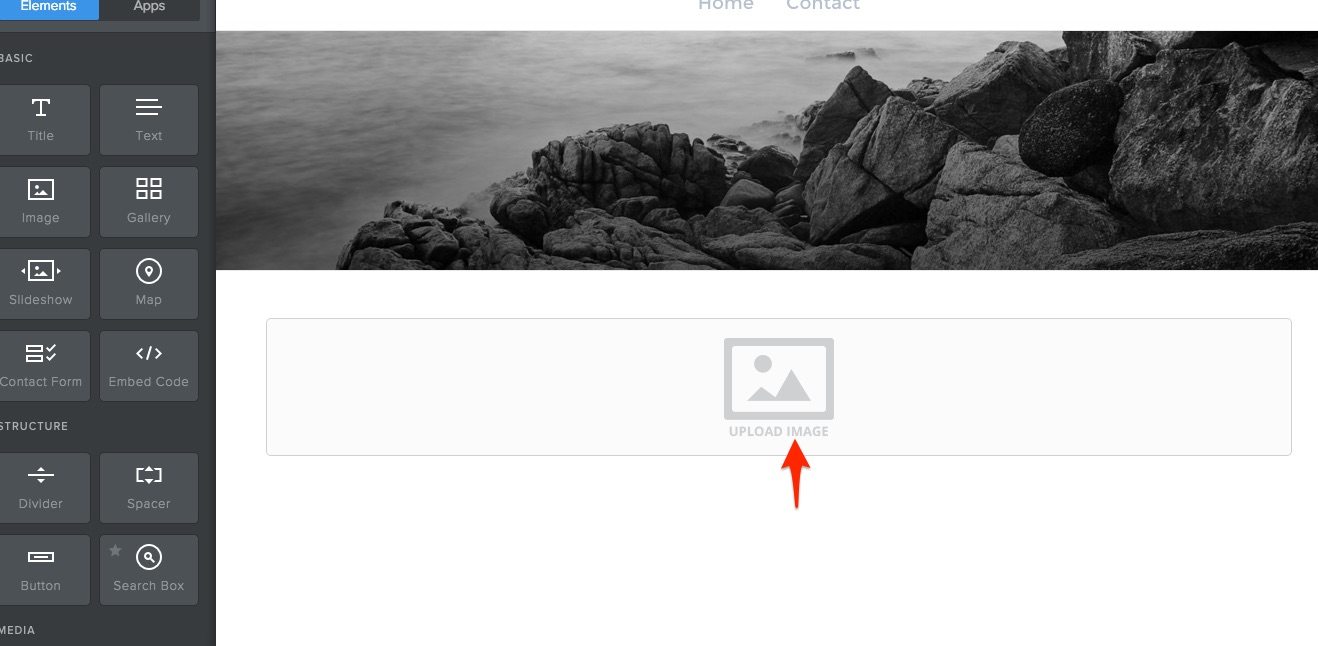
After clicking, you will get the same window shown several slides earlier, with the green button that says “Upload a photo from your computer.” In this situation, all you do is click on that button, find the file on your computer, double click, and it will be automatically updated on your Weebly website, no need to press “save” or anything.
Step 5: Explore Additional Elements and Options
The Weebly website builder gives you lots of different element options. The problem, is that going over each one individually is well beyond the scope of this article.
For example, you can:
- Change your theme at any time
- Add maps to any page
- Set up a contact form
- Add dividers or spacing
- Add a variety of media, including Videos and Audio files
- Add Social Media Icons and Links
- Add a survey
- And much more
Most of these actions are pretty self explanatory once you are familiar with the system. But, if you are having trouble figuring them out, Weebly has great tutorials for all of these actions that can be found at theirHelp Center. The tutorials are very similar to this article, detailing what you need to do and then showing a screenshot of what that looks like.
Weebly Elements are the essential building blocks of your site. Nearly all the content you add to your pages will be built with Elements.
To learn how to put these Elements to use, watch the short How'd They Do That video below, and/or read the guide that follows it.
Quite simply, you only need to find the Element you want to use then Click, Drag and Drop it exactly where you want it.
Find, Click, Drag, Drop.
As you add more elements to your page, the draggable content area will expand to accommodate them.

While dragging an Element to a page, this blue guide line will tell you where the element will be placed when you drop it.
Either stack elements on top of each other, or, drag one element to the left or right of another.

Placing elements side by side will automatically create columns on the page that allot equal space to each element. You can adjust the space between these columns by using the narrow bar that appears between them by clicking and dragging it to the left or right.

All elements have three universal options: Copy, Delete and Move.
Hover over an element and a blue box will appear.

The "X" in the upper right allows you to delete this element. Keep in mind though, once deleted, it can never come back.

The arrow in the upper left allows you to copy an element (to the same page or another page) to to move an element (to another page).

And clicking on the box between the "X" and the arrow, allows you to pick the element up and drag it around the page.

Step 1 — Pointing Domain Name to Weebly
- In your hosting control panel locate and access
DNS Zone Editor
section.

- Select appropriate domain name from the drop down list. You can skip this step if you have only one domain name.

- Locate your domain’s A record and hit
Edit
button.

- Replace current value in Address field with
199.34.228.59(it is Weebly’s IP address) and hit Edit Record button.
The hard part is over! You just pointed domain name to Weebly. However, note that it can take up to 48 hours for DNS changes to fully propagate worldwide.
Step 2 — Changing Domain Name on Weebly
Once you have pointed the domain name to Weebly IP address, assign the domain to your site on Weebly editor:
- Access Weebly editor and press
Settings
tab which is located at the top of the page.

- On Site Address section press
Change
button.

- A new pop-up window will appear. Select
Use a Domain You Already Own
option, enter your domain name in the field and press
Continue
button.

Your domain name is now connected to Weebly. If you experienced any issues following this tutorial, contact your hosting support staff and they will gladly help you to point domain name to Weebly.
Conclusion
You just finished this short tutorial and learned how to point domain to Weebly website. Once DNS propgation is complete, your domain name will display a website created with Weebly website builder.